
Actions
Actions are used to show that an event handler (callback) has been called, and to display its arguments. The actions panel can show both story args and other function calls.
Story args
Actions work via supplying special Storybook-generated mock functions to your story's event handler args. There are two ways to get an action arg:
Via storybook/test fn spies
The recommended way is to assign fn() to an arg, which creates a mock function that is automatically spied on by Storybook. This is very useful for writing interaction tests.
// Replace your-framework with the framework you are using, e.g. react-vite, nextjs, vue3-vite, etc.
import type { Meta } from '@storybook/your-framework';

import { fn } from 'storybook/test';

import { Button } from './Button';

const meta = {
  component: Button,
  // 👇 Use `fn` to spy on the onClick arg, which will appear in the actions panel once invoked
  args: { onClick: fn() },
} satisfies Meta<typeof Button>;

export default meta;
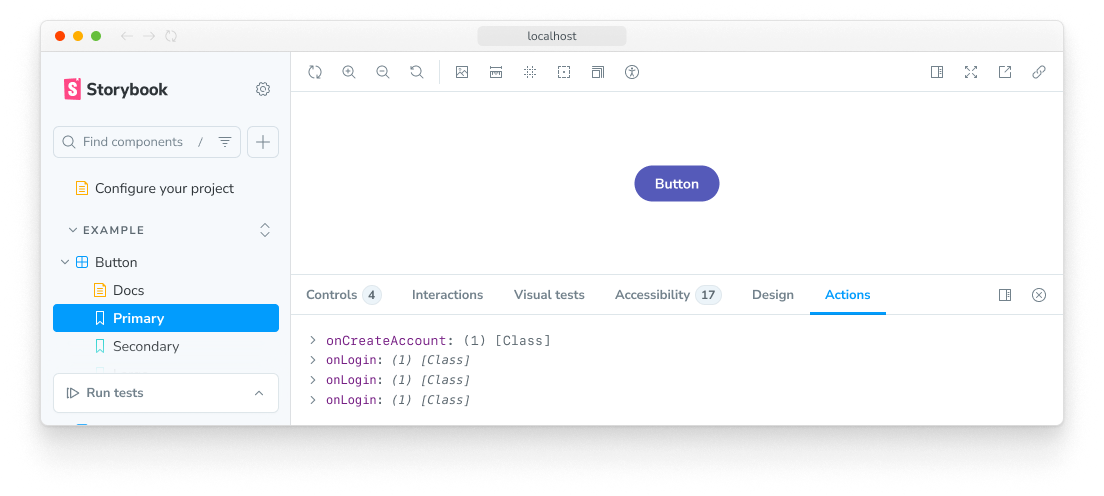
When your component calls an arg (because of either the user's interaction or the play function) with an fn() assignment, the event will show up in the actions panel:
If you are defining a mock function with fn() outside of args, you must provide a name for it to automatically log to the actions panel:
const handleClick = fn().mockName('handleClick');Automatically matching args
Another option is to use a global parameter to match all argTypes that match a certain pattern. The following configuration automatically creates actions for each on argType (which you can either specify manually or can be inferred automatically).
This is quite useful when your component has dozens (or hundreds) of methods and you do not want to manually apply the fn utility for each of those methods. However, this is not the recommended way of writing actions. That's because automatically inferred args are not available as spies in your play function. If you use argTypesRegex and your stories have play functions, you will need to also define args with the fn utility to test them in your play function.
// Replace your-framework with the framework you are using, e.g. react-vite, nextjs, vue3-vite, etc.
import type { Preview } from '@storybook/your-framework';

const preview: Preview = {
  parameters: {
    actions: { argTypesRegex: '^on.*' },
  },
};

export default preview;
If you need more granular control over which argTypes are matched, you can adjust your stories and include the argTypesRegex parameter. For example:
// Replace your-framework with the framework you are using, e.g. react-vite, nextjs, vue3-vite, etc.
import type { Meta } from '@storybook/your-framework';

import { Button } from './Button';

const meta = {
  component: Button,
  parameters: { actions: { argTypesRegex: '^on.*' } },
} satisfies Meta<typeof Button>;

export default meta;
This will bind a standard HTML event handler to the outermost HTML element rendered by your component and trigger an action when the event is called for a given selector. The format is <eventname> <selector>. The selector is optional; it defaults to all elements.
Non-story function calls
You can still use the actions panel if you need to log function calls that are unrelated to any story. This can be helpful for debugging or logging purposes. There are two main ways to do this: spyOn from storybook/test or the action function from storybook/actions. For basic logging, we recommend creating a function spy, and for more complex scenarios, you can use the action function directly.
Via storybook/test spyOn
Mocks and spies from storybook/test are automatically logged as actions (when applied as arg values or when given a name). The easiest way to show function calls in the actions panel is to use the spyOn utility function. Spies appear with a default name, which you can customize by calling the mockName method.
// Replace your-framework with the framework you are using (e.g., react-vite, nextjs, svelte)
import type { Preview } from '@storybook/your-framework';

import { spyOn } from 'storybook/test';

const preview: Preview = {
  async beforeEach() {
    spyOn(console, 'log').mockName('console.log');
  },
};

export default preview;
Via the action function
To filter which function calls are logged, you can override the spyOn function's behavior by providing a custom implementation that calls the action function from storybook/actions only if it matches a specific condition to prevent it from logging all calls to the function it spies on.
// Replace your-framework with the framework you are using (e.g., react-vite, nextjs, svelte)
import type { Preview } from '@storybook/your-framework';

import { action } from 'storybook/actions';
import { spyOn } from 'storybook/test';

const originalConsoleLog = console.log;
const preview: Preview = {
  async beforeEach() {
    spyOn(console, 'log')
      // Disable automatic logging in the actions panel
      .mockName('')
      .mockImplementation((args) => {
        // Check if the log message matches a certain pattern
        if (someCondition(args)) {
          // Manually log an action
          action('console.log')(args);
        }

        // Call the original console.log function
        originalConsoleLog(...args);
      });
  },
};

export default preview;
API
Parameters
This contributes the following parameters to Storybook, under the actions namespace:
argTypesRegex
Type: string
Create actions for each arg that matches the regex. Please note the significant limitations of this approach, as described above.
disable
Type: boolean
Disable the action panel.
This parameter is most useful to allow overriding at more specific levels. For example, if this parameter is set to true at the project level, it could then be re-enabled by setting it to false at the meta (component) or story level.
expandLevel
Type: number
Default: 1
Controls how many levels deep the action tree is initially expanded. Useful when action arguments contain nested objects and you want to see more detail by default.
Exports
import { action } from 'storybook/actions';action
Type: (name?: string) => void
Allows you to create an action that appears in the actions panel of the Storybook UI when clicked. The action function takes an optional name parameter, which is used to identify the action in the UI.
// Replace your-framework with the framework you are using, e.g. react-vite, nextjs, vue3-vite, etc.
import type { Meta } from '@storybook/your-framework';

import { action } from 'storybook/actions';

import Button from './Button';

const meta = {
  component: Button,
  args: {
    // 👇 Create an action that appears when the onClick event is fired
    onClick: action('on-click'),
  },
} satisfies Meta<typeof Button>;

export default meta;
configureActions
import { configureActions } from 'storybook/actions';Type: (options?: ActionOptions) => void
Configures the global behavior of the actions addon. Call this in your .storybook/preview.* file or anywhere before actions are used. Available options:
limit(number, default:50): Maximum number of action entries to display. When the limit is reached, the oldest actions are discarded.clearOnStoryChange(boolean, default:true): Clear the actions panel when navigating to a different story.depth(number, default:10): Serialization depth for action arguments.
import { configureActions } from 'storybook/actions';

configureActions({
  limit: 20,
  clearOnStoryChange: false,
});