
UI review
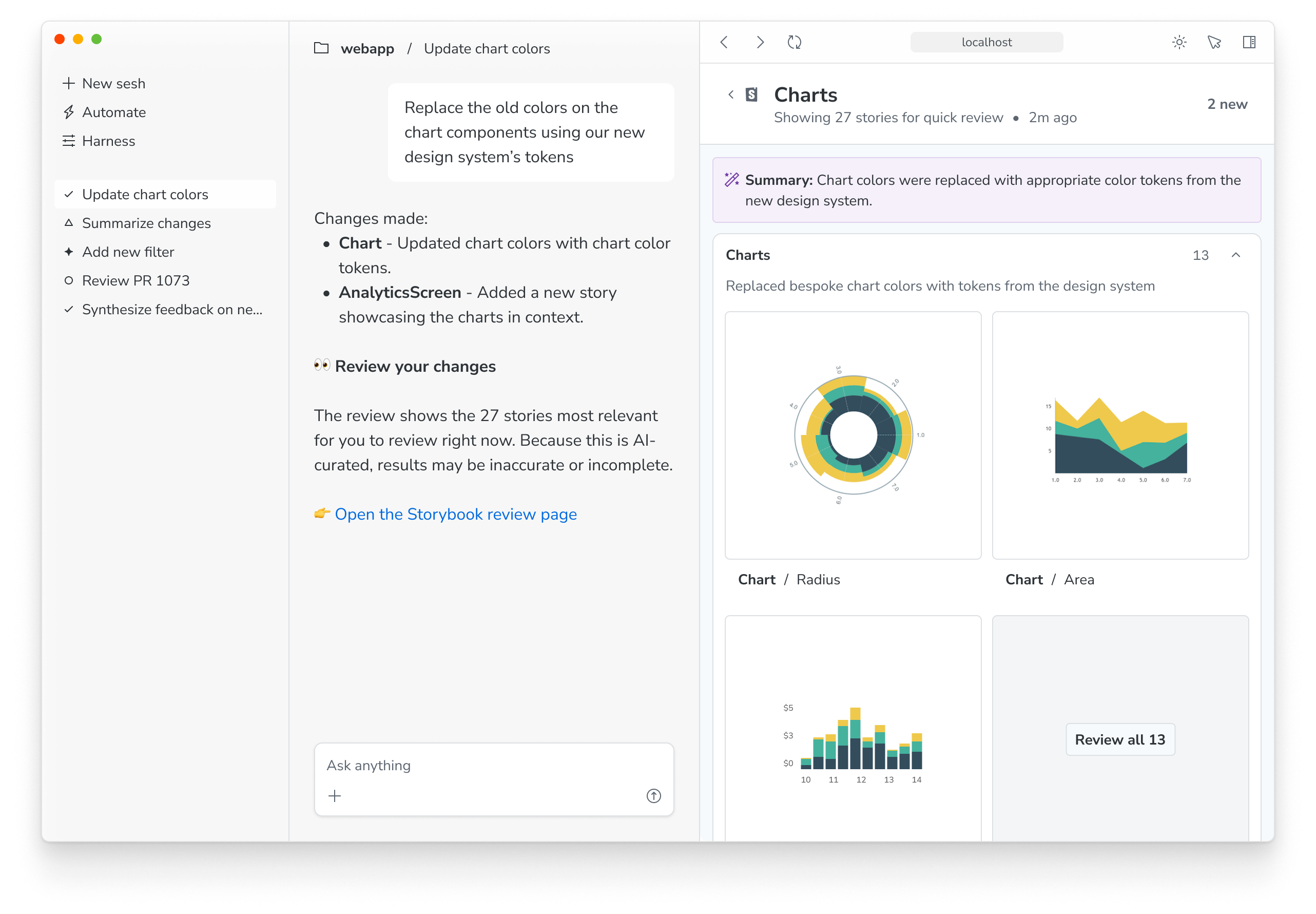
The /ui-review skill lets your agent show you the UI it changed, in one place. When you ask for it, your agent creates an agentic review: a summary of its work and the stories that the change affects, grouped from the changed component up to the pages that use it.
Requirements
- Storybook 11
- An agent connected with skills or the MCP server
- A running Storybook dev server. With skills, your agent starts it if it isn't running.
When your agent uses it
Your agent creates a review when you ask for one, for example by accepting the line that ends its reply after a UI change: "Use the /ui-review skill to see the changed components in Storybook". The Storybook section in AGENTS.md tells it to end with that line instead of creating a review on its own. It skips the review when nothing visible changed, such as a change to tests or types, and tells you so.
When you ask to see something, such as "Show me the Button in all its states", the agent creates a review of those stories without changing any files.
How your agent builds a review
Your agent finds the stories that its change affects, then puts them into two to five groups, from the changed component up to the pages that show it. For example, a change to Button can give one group for the button's own stories, one for the forms that use it, and one for the pages around them. Every story the agent created is in the review.
A review is a curated selection, not a complete list of affected stories. The agent writes the summary and chooses the groups, so check them as you would check any other work by your agent.
The dev server
The review needs a running Storybook dev server. The agent uses the dev server that's already running for your project, and never starts a second one. If none is running, the agent starts it with your project's Storybook script, such as npm run storybook. The agent leaves the dev server running when it's done, so you can keep looking at your stories.
Review the changes
To open a review, click the link at the end of your agent's reply, or click the review widget in the Storybook sidebar.
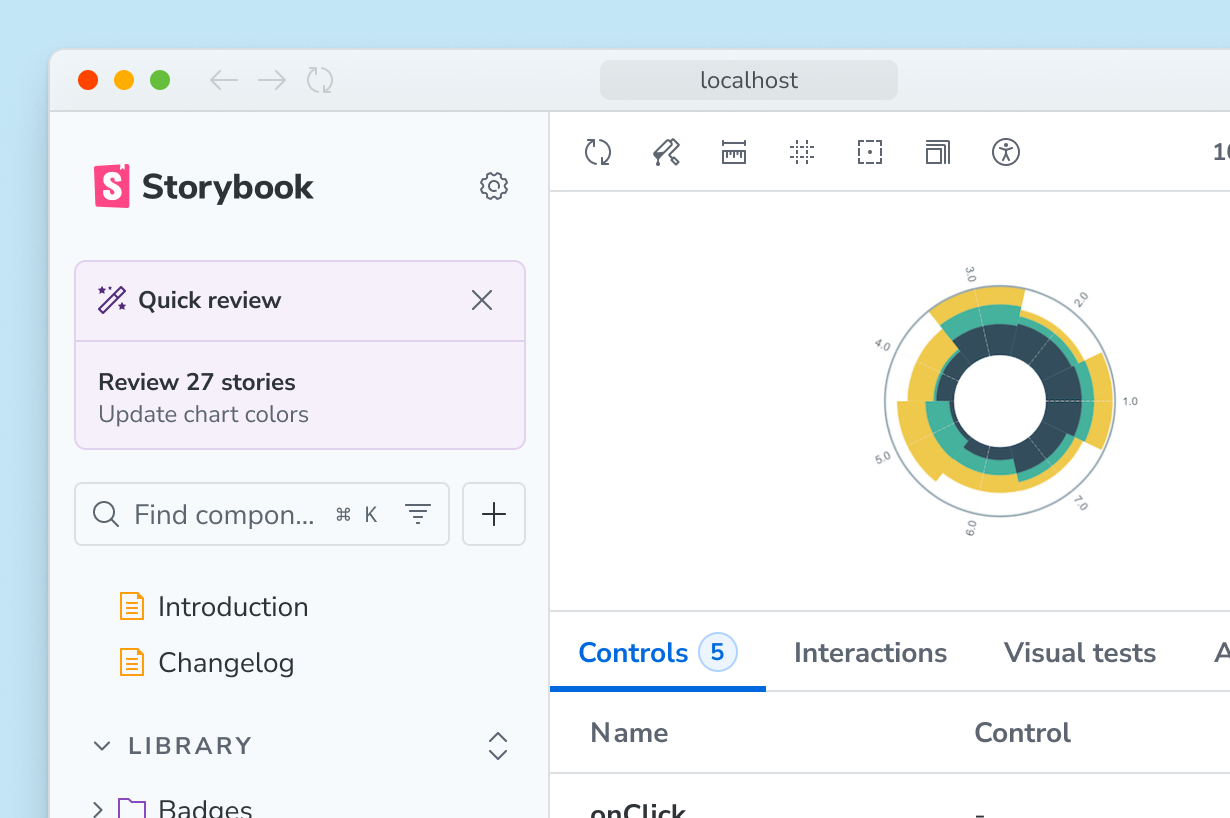
When a review is available, the widget takes the place of change detection in the sidebar. You can still use the change detection filters to see new and modified stories.
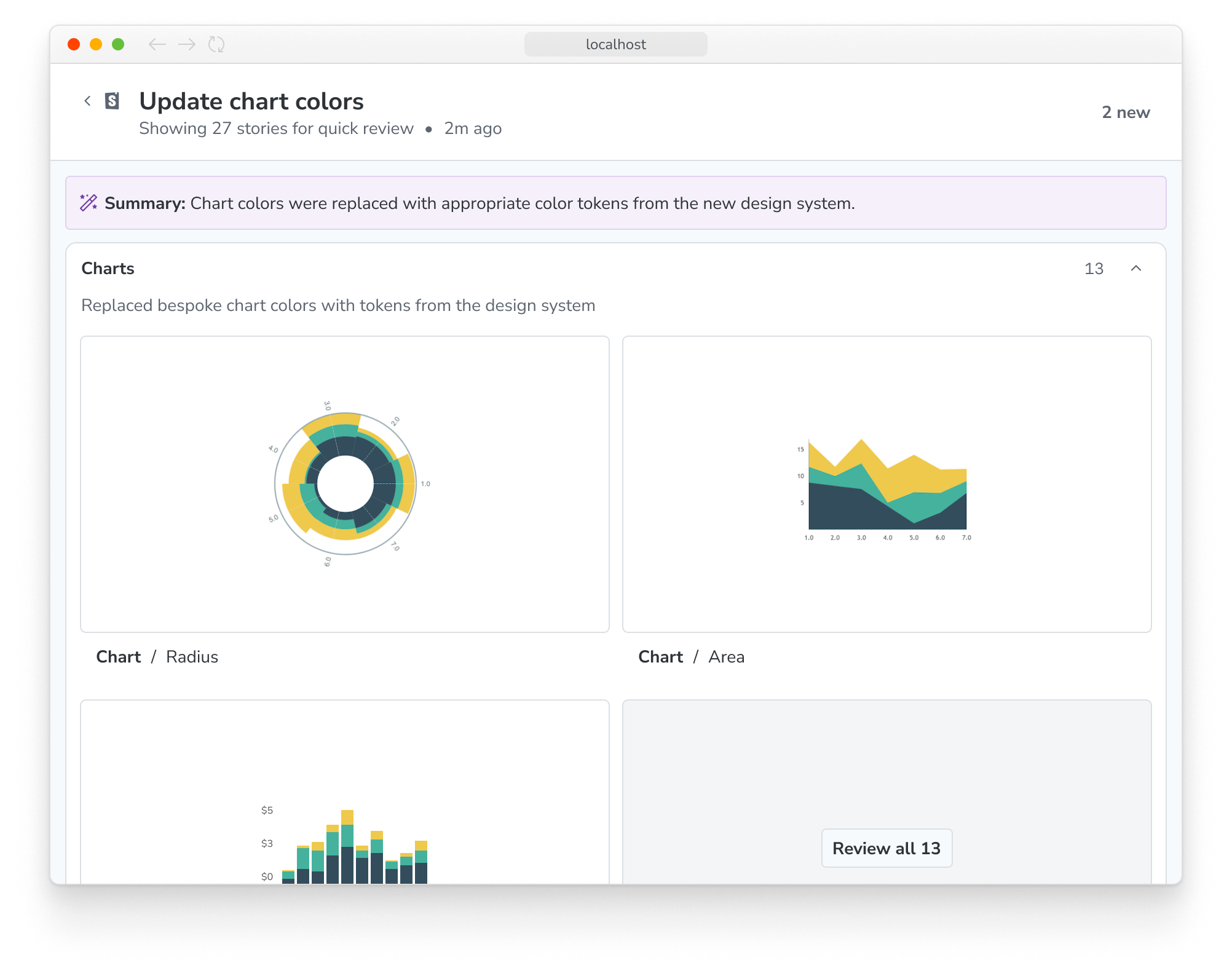
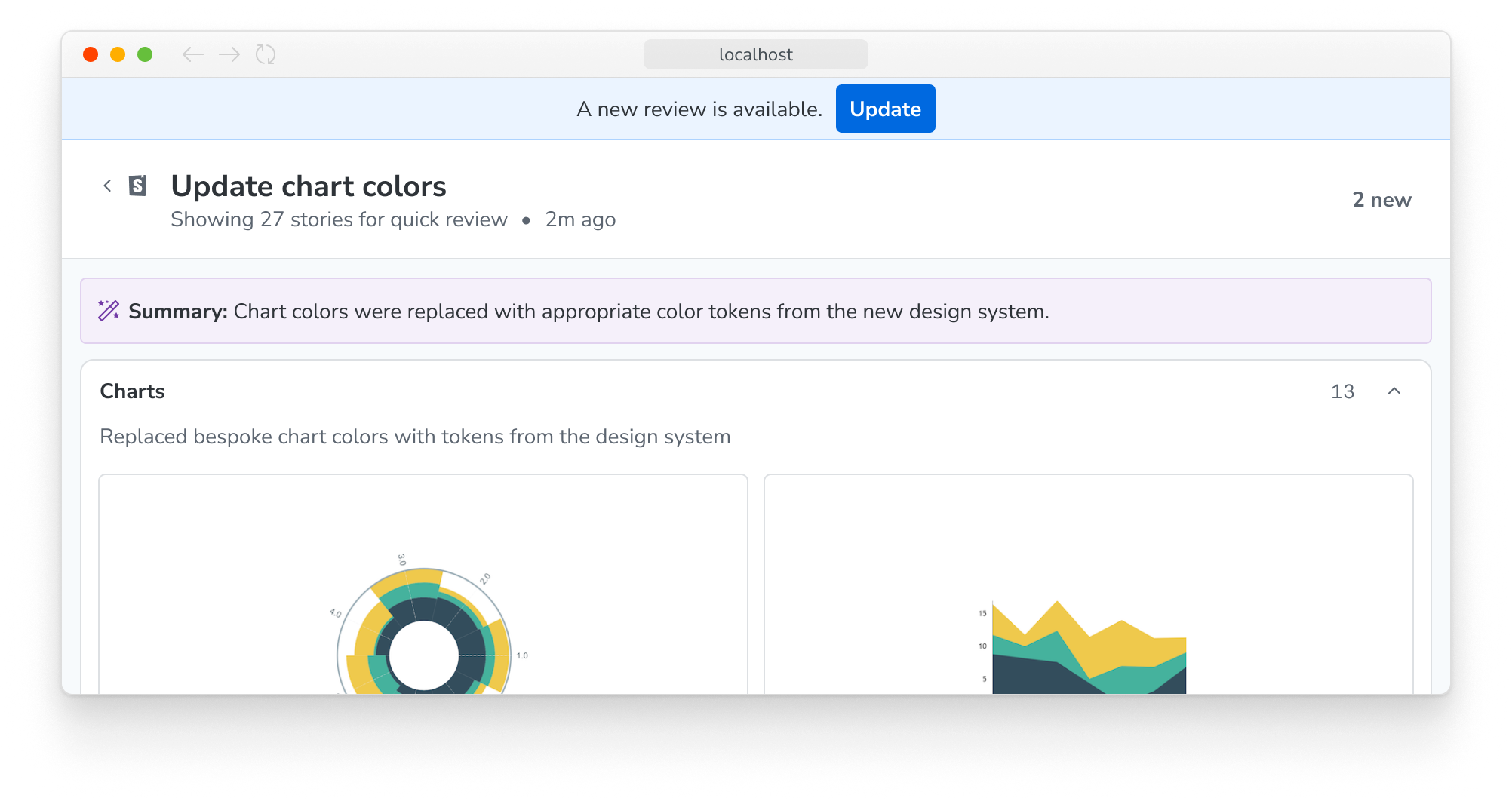
The summary page shows the agent's description of the change and each group of stories, with a title and the reason the group is relevant.
To see a story in more detail, click its thumbnail. You can inspect the component with Storybook's features and your browser's tools, and run tests if your Storybook is configured for them.
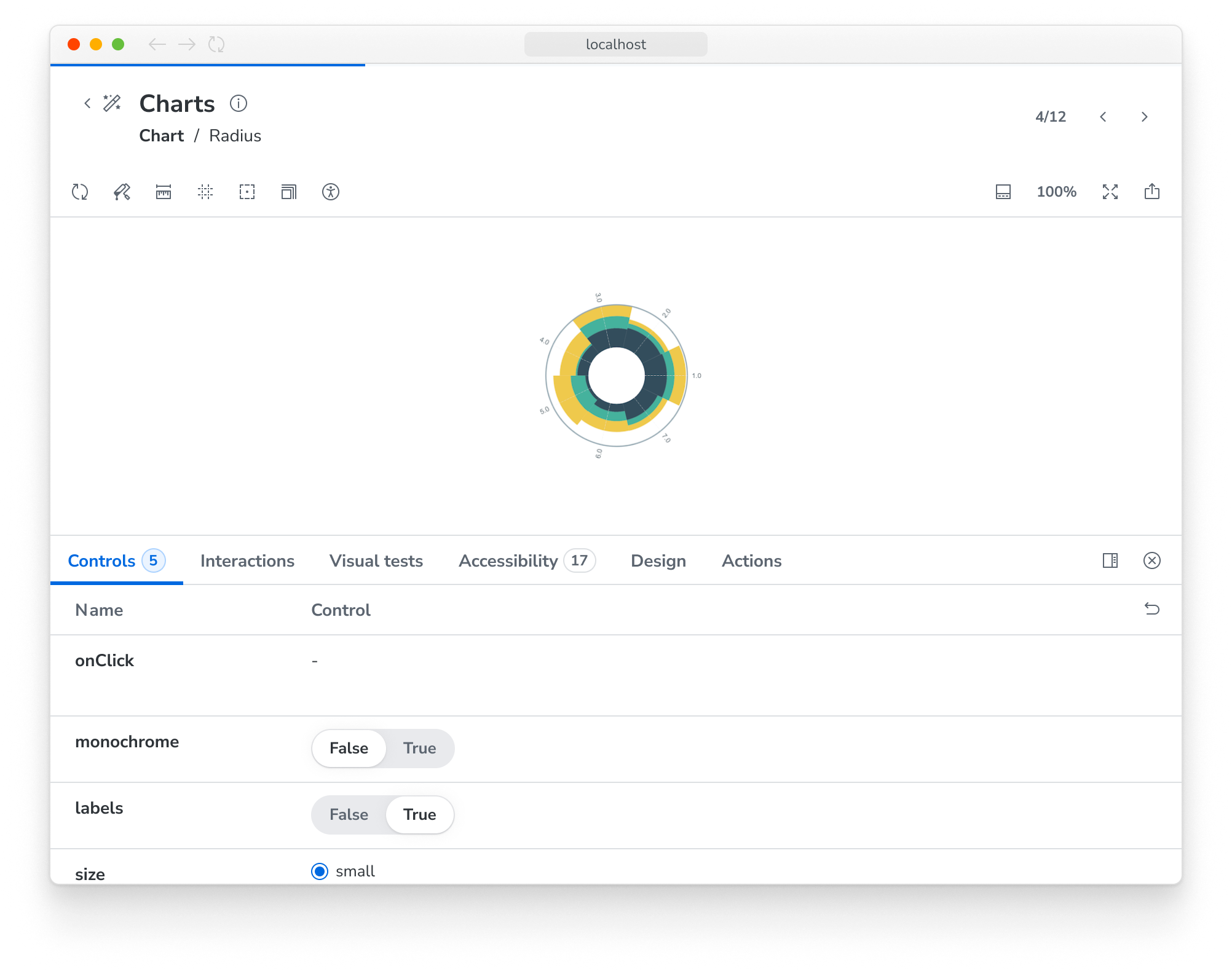
Use the next and previous buttons in the top-right corner to move through the stories in the review. Click Back to review to return to the summary page.
If files change after the agent creates a review, a banner tells you that the review may be out of date. Copy the prompt in the banner to ask your agent for a new review.
When you're done, click the Storybook logo in the top-left corner to return to your Storybook.
More AI resources